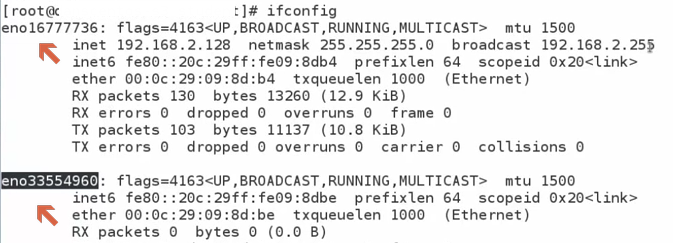
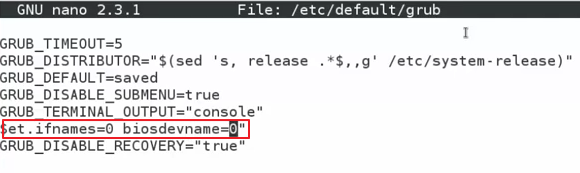
Pre-requisite:
1. Run the following command
4. Create Client Certificate
1. Run the following command
- yum install openvpn
2. Copy the sample configuration file from openvpn
- cp /usr/share/doc/openvpn-2.3.11/sample/sample-config-files/server.conf /etc/openvpn
3. Edit the /etc/openvpn/server.conf and change the following
- uncomment line 192, remove the semi-colon in front of the "push"
- push "redirect-gateway def1 bypass-dhcp"
- uncomment line 200 and 201, remove the semi-colon in front of the "push" and change the IP address to your DNS server
- push "dhcp-option DNS 8.8.8.8"
- push "dhcp-option DNS 8.8.4.4"
- uncomment line 267 and 268, remove the semi-colon in front
- user nobody
- group nobody
- Save the configuration file
3. Create certificate keys
- Install RSA
- yum install easy-rsa
- Create directory
- mkdir -p /etc/openvpn/easy-rsa/keys
- Copy RSA files to the directory you just created
- cp -rf /usr/share/easy-rsa/2.0/* /etc/openvpn/easy-rsa/
- Edit /etc/openvpn/easy-rsa/vars
- Change the exports in line 64 to 49 with your appropriate information
- Change the directory to RSA and build the Certificates of Authority
- cd /etc/openvpn/easy-rsa
- source ./vars
- ./clean-all
- ./build-ca
- ./build-key-server $( hostname )
- ./build-dh
- Copy the certificate keys to /etc/openvpn folder
- cd /etc/openvpn/easy-rsa/keys
- cp ca.crt vpn2.crt vpn2.key dh2048.pem /etc/openvpn
- Run restore context (restoring security context for SE Linux)
- restorecon -Rv /etc/openvpn
- Create symbolic link
- ln -s /lib/systemd/system/openvpn\@.service /etc/systemd/system/multi-user.target.wants/openvpn\@server.service
- Edit server.conf
- In line 79,80 change the name of certificate and key you created
- cert vpn2.crt
- key vpn2.key
- Enable the server
- systemctl -f enable openvpn@server.service
- Start the server
- systemctl start openvpn@server.service
- Check the status
- systemctl status openvpn@server.service
4. Create Client Certificate
- cd /etc/openvpn/easy-rsa
- source ./vars
- ./build-key myclient01
5. Copy the the following generated certificate to OpenVPN client remote computer into config folder
- ca.key
- myclient01.crt
- myclient01.key
- change the attribute of this file to 644
- chmod 644 myclient01.key
- Create or edit the myclient.ovpn file in client computer with the following parameters
- client
- dev tun
- proto udp
- remote 192.168.3.95 1194
- resolve-retry infinite
- nobind
- persist-key
- persist-tun
- comp-lzo
- verb 3
- ca ca.crt
- cert myclient01.crt
- key myclient01.key
- auth-user-pass
6. Turn the VPN server into a router, dynamically change kernel parameter
- Edit the /etc/sysctl.conf and add the following line
- net.ipv4.ip_forward=1
- Load the sysctl.conf file
- sysctl -p
- touch /etc/pam.d/openvpn
- nano /etc/pam.d/openvpn
- Add the following lines
- auth required pam_unix.so shadow nodelay
- account required pam_unix.so
- Edit the /etc/openvpn/server.conf and add the following lines
- plugin /usr/lib64/openvpn/plugins/openvpn-plugin-auth-pam.so openvpn
- add route in line 143, this will be the ip address range where connected users get their ip address in the internal network
- push "route 192.168.20.0 255.255.0.0"
- uncomment line 210
- client-to-client
- Restart the service
- systemctl stop openvpn@server.service
- systemctl start openvpn@server.service
- Check the status
- systemctl status openvpn@server.service