Showing posts with label SAP PM. Show all posts

Monday, November 28, 2016

Display Maintenance Plans


1. Tcode: IP03

  • Enter plant maintenance number you wish to display
  • Press enter or click check button at the top


2. Navigate the tabs you wish to view the details


----------- done ------------

Change Maintenance Plan


1. Tcode: IP02

  • Enter the Maintenance Plan number you wish to edit or update


2. Select the tabs you wish to update

  • Update the call horizon
  • Enter how many months this schedule will run in Scheduling period


3. Save

Schedule Maintenance Plan


1. Tcode: IP10

  • Enter the Maintenance Plan number
  • Press enter or the check button at the top


2. Click the Start button


3. Enter or edit the desired Start Cycle date


4. The schedule list will be populated with the plan date

  • System will show the plan for the planned duration of 15 months, plan for carrying out maintenance every month.


5. Select the first row with the scheduling type of "New start Hold"

  • Click the release button


6. Scheduling Type will change to New start Save to call

  • Save the schedule


-----------------done--------------

Sunday, November 27, 2016

Change General Task List

1. Tcode: IA06


  • Enter the task list group where the task list you wish to edit is located
  • Press enter or click the check button


2. The list of Task list within the group will be displayed

  • Select the Task List description you wish to change or edit
  • Click the Operation button to view the operations inside the task list


3. Add record or change the operation as you need it


  • Enter the operation description
  • Enter number work
  • Enter the unit of work
  • Enter how many person will work
  • Enter the Calculation to 1, it will automatically calculate the duration of work

4. Save


-------------- done -----------


        Saturday, November 26, 2016

        Display Notification


        1. Tcode: IW23

        • Enter the Notification number you wish to view
        • Press enter or the check button


        2. Navigate the tab to view the details of the notification


        ---------done--------

        Display Equipment BOM

        1. Tcode: IB03

        • Enter the equipment you wish to display
        • Enter the Plant
        • Enter BOM usage

        2. Navigate the tabs to view the BOM details


        ---------------------- done ------------------


        Change Equipment BOM

        1. Tcode: IB02

        • Enter the equipment number you wish to edit the BOM
        • Enter the Plant
        • Enter the BOM usage and press enter


        2. Edit the data you need to update


        3. Click save button
        • Above message will show once successfully saved 


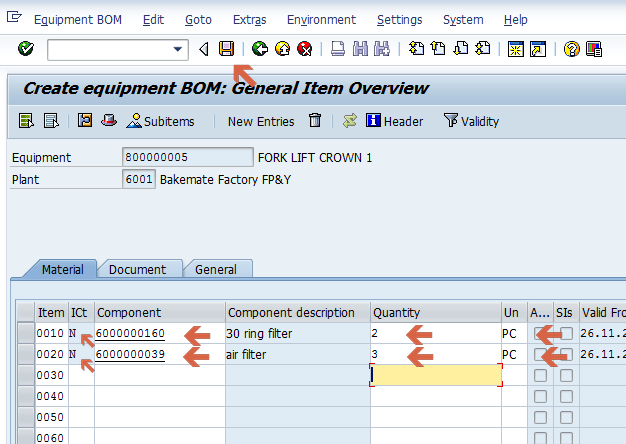
        Create Equipment BOM

        1. Tcode: IB01

        • Enter the equipment number you wish to create a Bill Of Material
        • Enter the Plant location of the equipment
        • Select the BOM usage number 4 - Plant Maintenance
        • Press enter or click the check button


        2. Enter the material needed for the BOM

        • Enter the Material Number of the component
        • Enter the Item Category of the equipment
          • N - if the material is Non-Stock item
          • I - if Stock Item
        • Enter the quantity
        • Enter the unit
        • Save the BOM


        •  Above message will display once saving is successful


        Friday, November 25, 2016

        Display Equipment Master data

        1. Tcode: IE03

        • Enter the equipment number you wish to display and press enter


        2. Navigate the tabs to view the details of the equipment.


        -----------------------done--------------------

        Change Equipment Master

        1. Tcode: IE02

        • Enter the equipment number you wish edit and press enter


        2. Update or edit the field you wish to change


        3. Save

        • This message will be displayed once saving is successful


        Create Equipment master

        1. Tcode: IE01

        • Click the Equipment Category 
        • Select the category for the machine you need to create
        • Press enter key or click the check button


         2. Fill up the required fields. If there is available data it is better to enter it all.


        • Enter the description of the machine
        • Select the object type
        • Enter the Inventory number (optional)


         3. Select Location tab
        • Enter the Maintenance Plant
        • Enter the Work Center

        4. Select the Organization tab


        • Enter the Cost Center
        • Enter the Planning Plant
        • Enter the Planner Group
        • Enter the Work Center and Plant


        5. Select Structure tab

        • Enter the Functional Location where the equipment is installed.


        6. Save
        • This message will be displayed in the status if there is no error

        ----------------- done ---------------------


        Create Functional Location

        1. Tcode: IL01

        • Enter the Functional Location name
        • Enter the required structure indicator designed for the company
          • Select AAA for this company


        2. Fill up the required data

        • Enter the functional location description
        • Enter Cost Center under organization tab
        • Enter Planning Plant


        3. Click save after data was filled up

        • Above message will be shown to confirm that the functional location was created.

        ---------------------- done --------------------


        Display Functional Location Structure with Equipment and BOM

        1. Tcode: IH01

         
        • Enter the parent hierarchy - H1
        • Check the Equipment installed under the Explosion section
        • Check the BOM Explosion
        • Click execute button

        2. Click the Expand whole button


        3. This will display the detail hierarchy structure that lists down Functional Location down to Equipment down to Spare Parts material.


        ----------------- done ----------------

        Display Functional Location Structure

        1. Tcode: IH01

        • Enter the parent hierarchy - H1
        • Click execute button


        2. Click Expand Whole button to show up the hierarchy


        3. The detail list display will be shown after the hierarchy was expanded


        ----------done-------

        Thursday, November 24, 2016

        Display Work Center


        1. Tcode: CR03

        • Enter or select the Plant
        • Enter or select the Work Center
        • Press enter key


        2. Navigate to the tabs you need to view


        ----------done-------------

        Change/Update Work Center Information


        1. Tcode: CR02

        • Select Plant
        • Enter Work Center


        2. Change or Update the data you needed to update.

        • Select the tab you needed to edit and update the fields you need to update or change.


        3. Click Save button.
        • There will be a confirmation at the status bar that the data has been save.